 ← Pickerty Resource Center
The last step. It turns a draft into a sale people can view.
The last step shows a snapshot of the whole sale on one screen — dates, times, address, when the address becomes public, and how many spots each group has. Read it once before you publish. It's the only place everything sits together, so anything that isn't right is easiest to spot here.
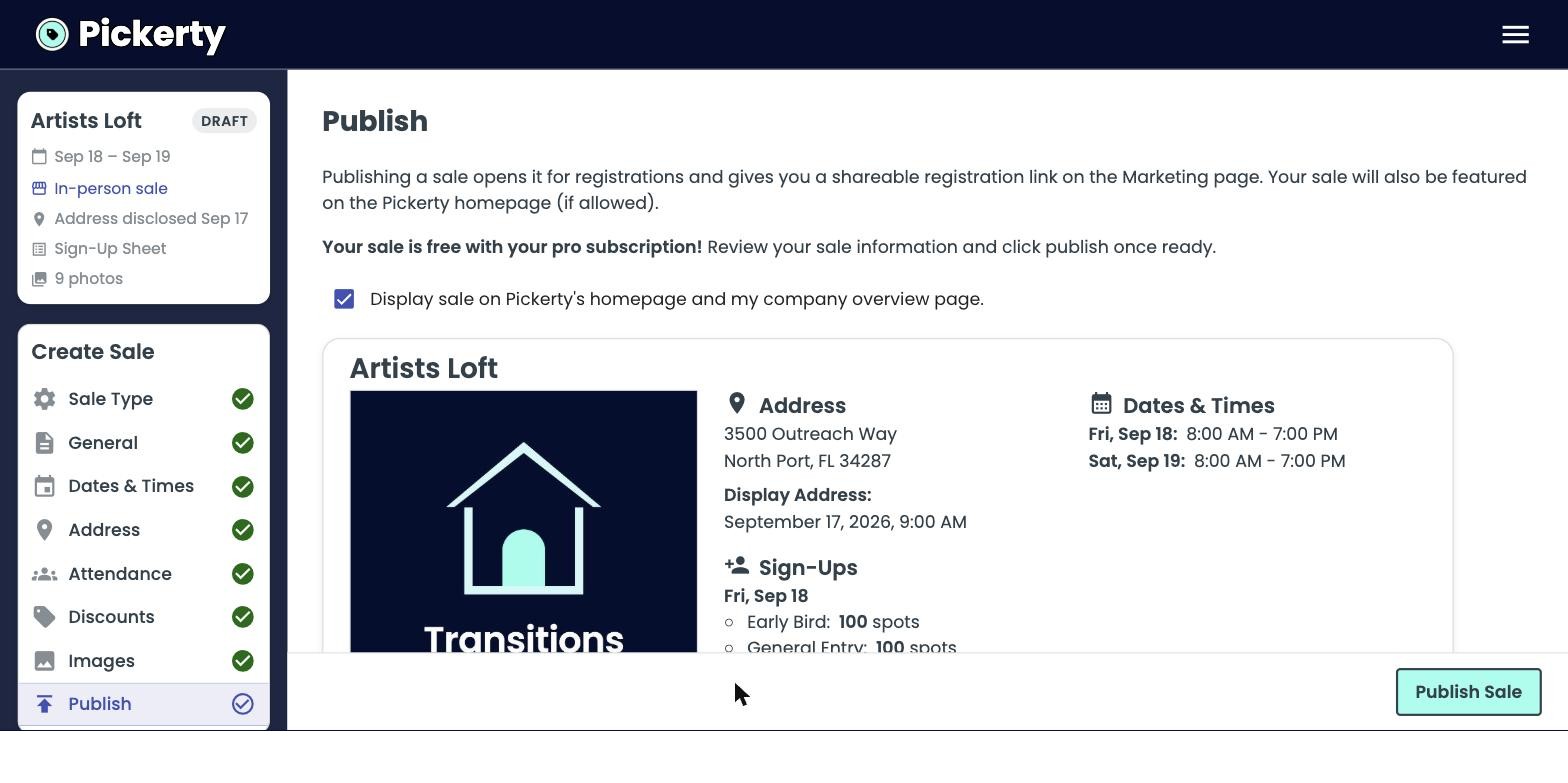
Display sale on Pickerty's homepage and my company overview page.
Leave this on. It puts your sale in front of shoppers already browsing Pickerty, at no cost to you. Uncheck it only for a genuinely private sale you're inviting people to directly or to share the sale link with your social media followers or email subscribers first.
Click Publish Sale at the bottom right. Your sale is now live and Pickerty takes you straight to your Sale Marketing page — that's where you pick up your sign-up link. See Share your sign-up link.
After publishing, this step shows a Revert to Draft button. Putting a sale back in draft mode allows you to edit it while it isn't live for customers.
Once a sale has been published and then put back in draft, your dashboard may label it Pending Image or Pending Revisions rather than plain Draft. It's a reminder that this one was live before and is waiting on you to finish something and publish it again. Anyone who had already signed up keeps their spot.
| Label | Meaning |
|---|---|
| DRAFT | Not published. Customers can't see it. |
| UPCOMING | Published. Shoppers can see it, but the sale hasn't started. |
| LIVE | Today is a sale day and you're within the hours you set. |
| COMPLETED | The last sale day has ended. |