 ← Pickerty Resource Center
Do this once. It appears on every sale you ever run.
Shoppers - and potential clients - who don't know you will look you up before heading to a sale. Your company profile is what they find. Fill it in before you create your first sale.
There are two pages worth your time.
Just two fields: your company name and your address.
This is your own address, not a sale address. Pickerty uses it for your account only — it is never displayed on your public profile, on a sale listing, or anywhere a shopper can see. The only address shoppers ever see is the one you enter for a particular sale.
The company name is limited to 40 characters, so keep it to the name people know you by.
This is the page shoppers actually see. Every field is optional, but the more you fill in, the more trustworthy and professional you look.
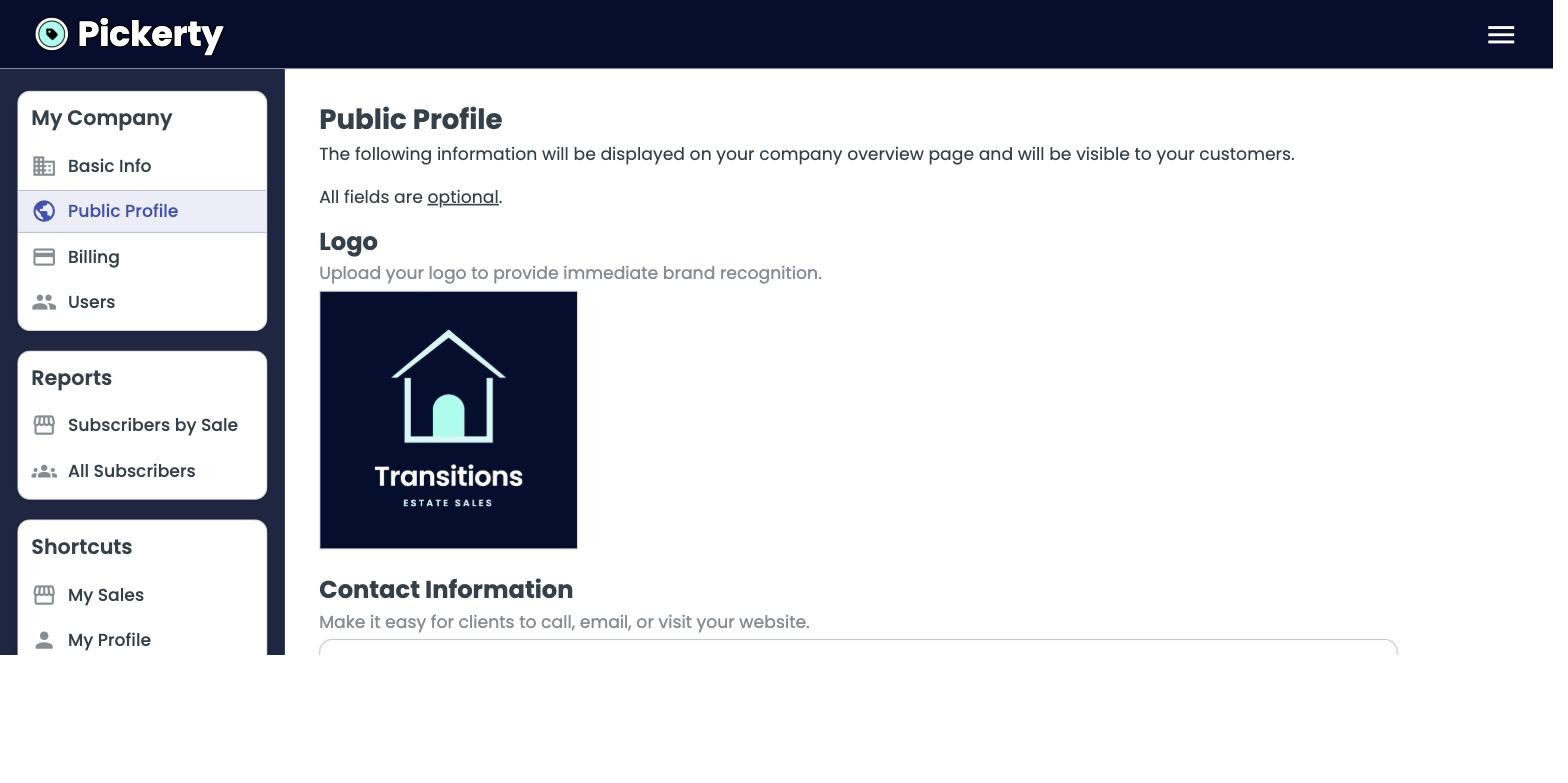
| Field | Why it matters |
|---|---|
| Logo | Appears beside your company name, on marketing material we provide, and is the default cover image for your sales. |
| Email, phone, website | Give potential clients a way to reach you. |
| Tagline | One line explaining what makes your company special. Up to 100 characters. |
| Social links | Facebook, Instagram, TikTok, YouTube and LinkedIn. Paste the full web address. |
| Terms & Conditions | Your house rules — all sales final, payment methods, no large bags, and so on. |
Whatever you type into Terms & Conditions is shown on every sale you list, and shoppers agree to it when they sign up. Write it once and you never have to argue about it at the door again.
When you're done, click Save at the bottom right.