 ← Pickerty Resource Center
Add people by hand, print the list, close sign-ups, or cancel a sale day.
Open a sale and click Manage under Registrations in the left-hand menu.
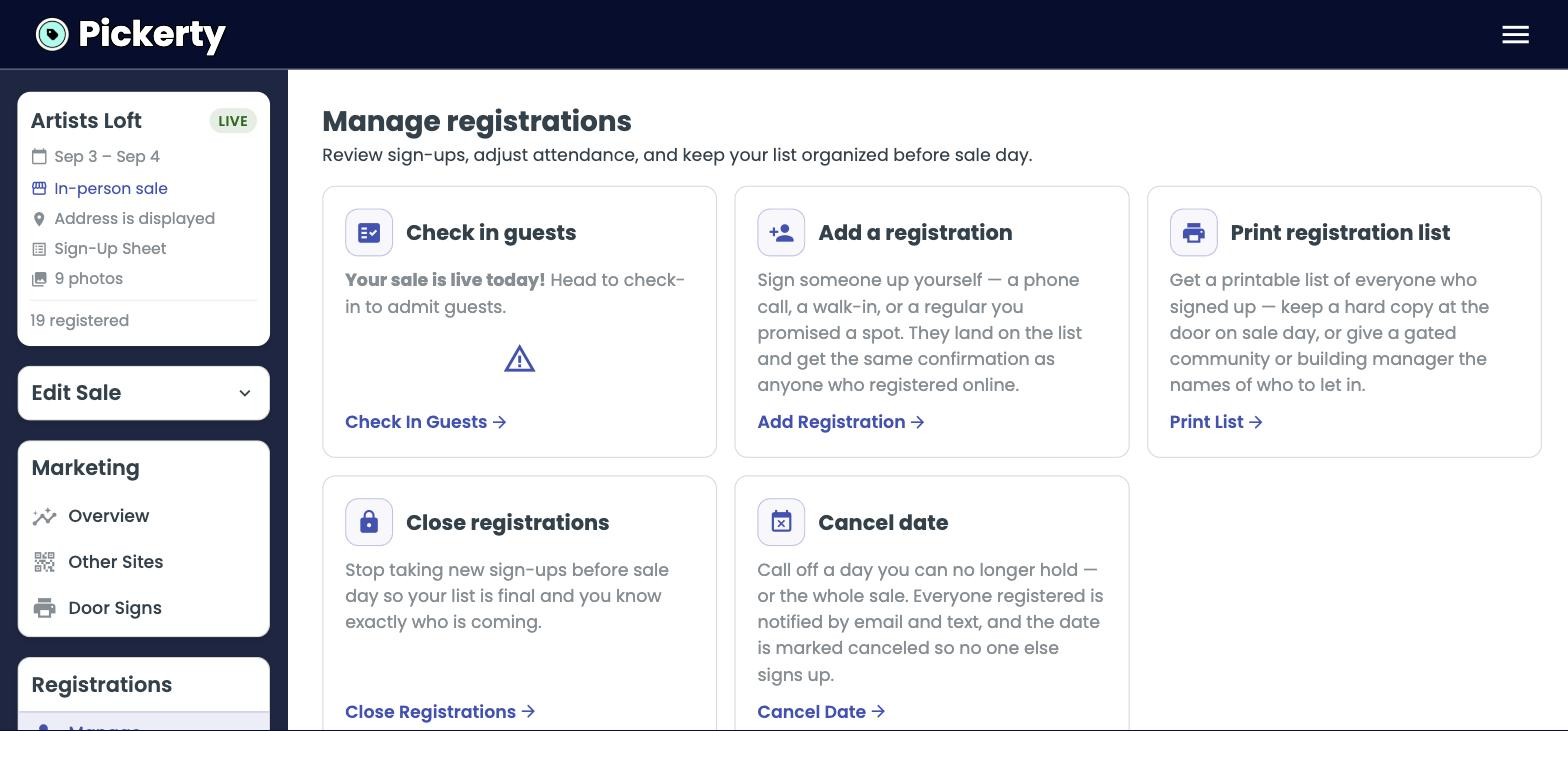
Underneath these buttons you'll find each sale day, with the list of who has signed up.
![Each day shows how full it is, group by group. Click [[Show registrations]] to see the names and ticket numbers.](images/16-reg-list.jpg)
For the regular who always phones you, or the older customer who doesn't have a smartphone.
They get the same confirmation email as anyone who signed up online, and they take the next number in line.
Pickerty doesn't ask you to pick an entry group here, because you can't charge someone a spot fee on their behalf. Anyone you add by hand goes onto the free general list.
A paper copy of everyone who signed up. Worth doing if:
The list downloads as a PDF, grouped the way your sale is set up.
It only appears once at least one person has signed up. On a brand-new sale with an empty list there is nothing to print, so Pickerty hides it.
Stops new sign-ups before sale day, so your list is final and you know exactly who's coming. Use it if a gated community or building manager requires a list before the sale opens.
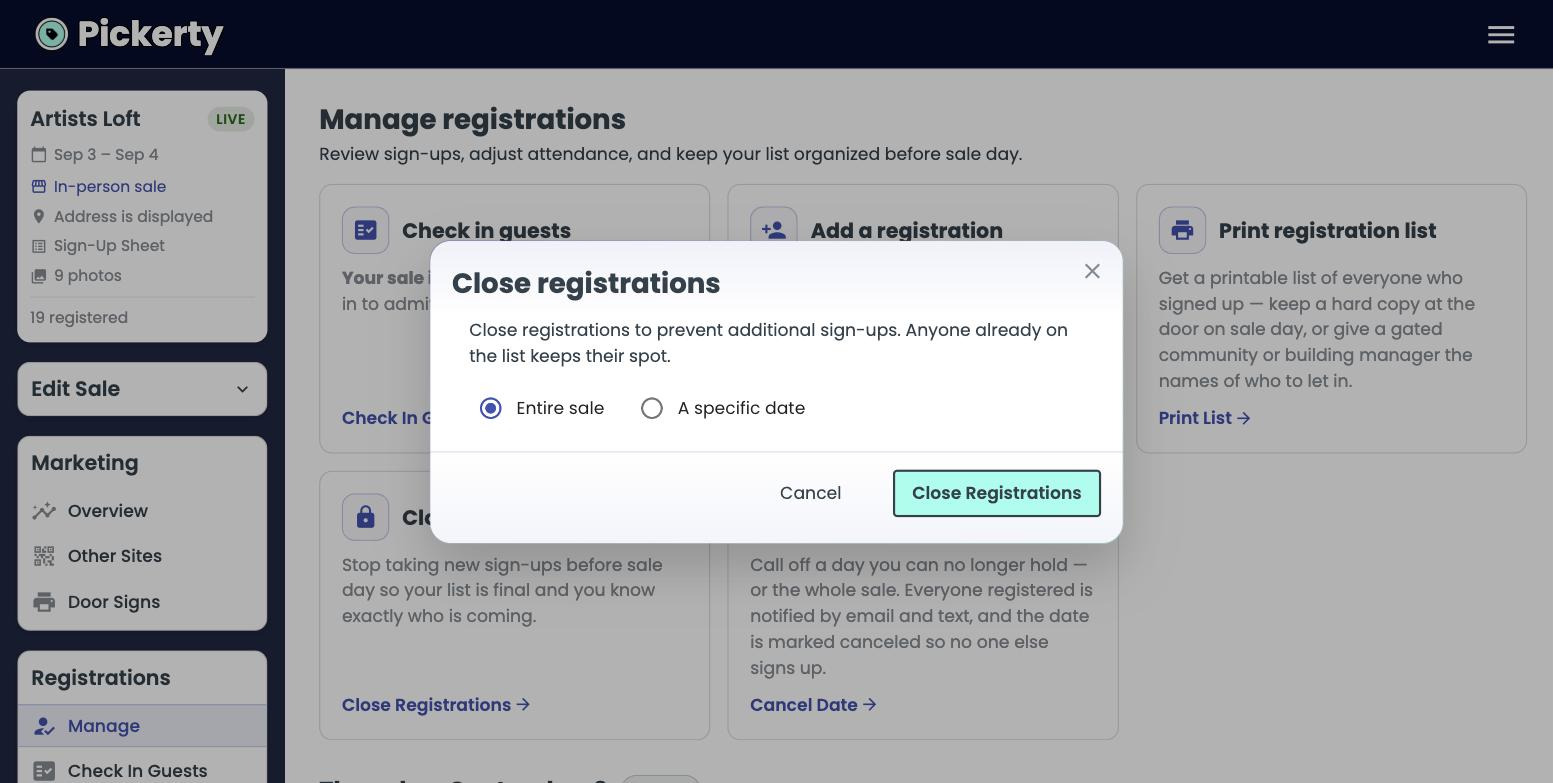
You choose how much to close:
Anyone already on the list keeps their spot either way.
This one closes sign-ups before the sale. There is a separate Close Registration on the check-in screen for use during a sale day, which also checks in anyone still waiting and decides whether walk-ins are welcome afterward — see Sale day: checking people in.
Calls off one day — or the whole sale. Everyone who registered is notified by email and text, and the date is marked canceled so nobody else can sign up. Add a custom message if you want to explain why the sale (date) was canceled.
If you cancel by posting on Facebook etc., a lot of people may not see it. Some of them may still show up at 8 a.m. to a locked house. Canceling here reaches every one who signed up directly.